
Vermont Digital Evidence Portal
If you want to present digital evidence such as audio, video, or high-resolution image exhibits for an upcoming hearing or trial, you must upload them to the Vermont Digital Evidence Portal (VDEP).
VDEP allows parties to submit electronic exhibits to the court, manage exhibits, and share the exhibits with other parties. If you don’t upload your digital exhibits to VDEP, you might not be allowed to use them in your hearing or trial.
VDEP is a system for uploading digital exhibits only. It is not the same thing as Odyssey File & Serve. VDEP is not a system for filing anything other than digital exhibits. See the Electronic Filing web page for information about e-filing using Odyssey File & Serve.
You must have an email address to create a VDEP account.
- Go to the VDEP site: evidence.vermontjudiciary.org/. Click the Sign up link.
- Enter the required information: case type, case number, and hearing date.
- If you don’t know the case type, case number, or hearing date, contact the Information Center: 802-652-1900 or informationcenter@vtcourts.gov.
- If a hearing is going to be scheduled but has not yet been scheduled, wait until court staff have scheduled the hearing before trying to upload exhibits.
- If you don’t expect a hearing or trial to be scheduled, contact the court handling the case and ask them to create a placeholder hearing.
- Enter your name and email address. A cell phone number is optional – enter it if you want to get confirmation codes via text. Check the boxes for the required agreements (if cell phone field is left blank only the 2nd checkbox is required) then click Submit.
- You will receive an email or text with a 6-digit confirmation code. Enter the code in the Activation Key field. Create a password of at least 8 characters and click Submit.
- On the next screen, login again with your email address and your new password.
Find detailed information about the uploading process in the Vermont Digital Evidence Portal Public User Guide.
- Sign into your account. The site will open to the Court Hearings screen.
- Click on the Add Case/Citation button.
- Choose the case type and enter the case number and hearing date. Click Ok. If you don’t have a hearing or trial date scheduled, contact the court handling the case and ask them to create a placeholder hearing.
- Select the case party you are uploading the exhibits for and click Add.
- The case and hearing should appear on the Court Hearings screen. Click the green Upload button to start adding files.
- Review the case number, hearing and party name on the next screen to make sure the information is accurate. If it is, click Next.
- The Upload screen will open. There are two ways to add a file:
- Drag and drop the file from your device into the shaded area, or
- Click into the shaded area, open the file directory on your computer, and select the file.
You can upload files one at a time or you can upload multiple files at once. The size limit per file is 100GB. There is no limit on the number of files you may upload.
- When you are done uploading files, click Next. On the Confirm screen, click OK.
You can add annotations and descriptions for each file, and mark exhibits as confidential, and rearrange the order of the files. See the Vermont Digital Evidence Portal Public User Guide for instructions.
- PLEASE NOTE: You will not be able to edit the annotations or descriptions later. If you go back a step you may lose your annotations and descriptions and have to restart the process.
- Once you’re done uploading exhibits and adding any descriptions or rearranging their order, click the Next button.
- WARNING: After you submit the exhibits you won’t be able to edit the files or their descriptions. If you want to make any changes related to these files you’ll have to start the upload process all over again.
- You will have one last chance to review the information. If everything looks ok, click the Finish button.
- A Confirm box will pop up. If you’re sure you’re done, click the OK button.
- A screen called Final Receipt Step will open. If you wish, you can print an exhibit receipt or exhibit list. These documents are optional.
The only way to view exhibits in VDEP is if you are the uploader or if you have received a link sharing access to the files. There is no other way to view exhibits in VDEP.
Find detailed information about sharing exhibits in the Vermont Digital Evidence Portal Public User Guide.
- Sign into your account.
- Select Gallery from the menu on the left side of the screen.
- Click on the image of each exhibit you want to share. A green check mark should appear over the image each item you’ve selected.
- Click the green Viewing Room icon at the top of the screen.
- On the Step 1 - Basic Info screen enter the date the file should be available until. Choose a date well past the scheduled hearing date in case the hearing is rescheduled. Click Next.
- On the Step 2 – User Selection screen provide at least the first and last name and email address of the person you want to share the files with. The recipient will be required to authenticate by cell phone or email (whichever you select) before they can access the files. You can enter multiple recipients, but they must be added one at a time.
- Once you have finished adding users, click the Submit button. The system will send all users an email with a link to the files. They will be required to provide the 6-digit code in order to access the files.
You may now also choose to send selected exhibits to other parties in the form of a Zip file. Allowing other parties to download the exhibits within a 60 day period so they may have better access.
- After selecting files in the Gallery, click on the zip file icon:
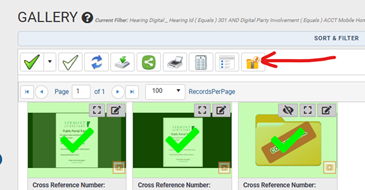
Clicking it will default to creating a zip file.
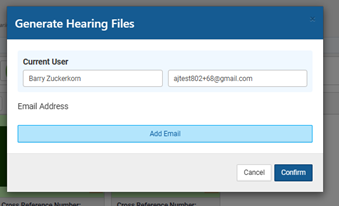
You can click “add email” in order to also create it for other parties.
After clicking confirm, other parties will receive an email with a link and an access key:
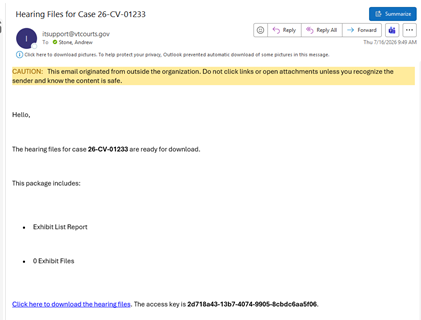
The other party can click on the link (which is valid for 60 days) and it will open up a place to enter the access key which the other party can copy and paste in. After clicking “download file” the zip file will download to the parties downloads folder: 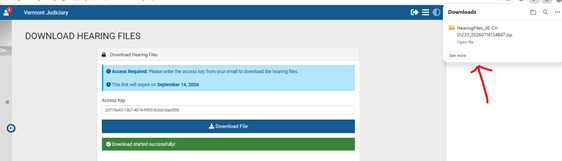
See the "Exhibits" section on the Filing Procedures webpage to learn more about exhibits and how to properly prepare and submit them for a court hearing. The section covers how to create an exhibit list, how to label exhibits depending on your role in the case, and the different ways to submit exhibits, including paper or PDF filings, digital evidence through the Vermont Digital Evidence Portal, and physical items delivered to the courthouse.
You are responsible for figuring out how you will present your exhibits during the hearing or trial.
- If your hearing or trial is in person, contact the court to see what equipment might be available. Most courtrooms will have sharing cables available at either a podium or under one of the attorney tables. The video below goes over the process for sharing evidence in the courtroom:
- If your hearing or trial is remote, you must come up with a plan for presenting the exhibit. One option is to share content in Zoom. You can find information on the Sharing Content in Zoom web page.
I am having trouble creating an account.
To create an account you must know your case type, case number, and hearing date.
- If you don’t know the case type, case number, or hearing date, contact the Information Center: 802-652-1900 or informationcenter@vtcourts.gov.
- If a hearing is going to be scheduled but has not yet been scheduled, wait until court staff have scheduled the hearing before trying to upload exhibits.
- If you don’t expect a hearing or trial to be scheduled, contact the court handling the case and ask them to create a placeholder hearing.
I don’t know my case type.
Court cases are handled in different divisions.
- Civil: eviction, general civil cases, small claims, order against sexual assault, order against stalking
- Criminal: felony, misdemeanor, and traffic cases
- Family: divorce, extreme risk protection order, juvenile, parentage, and relief from abuse
- Probate: adoption, estates, guardianship, name change, and trust
If you don’t know the case type, contact the Information Center: 802-652-1900 or informationcenter@vtcourts.gov.
I don’t know my case number.
Contact the Information Center: 802-652-1900 or informationcenter@vtcourts.gov.
I don’t have a hearing scheduled.
- If a hearing is going to be scheduled but has not yet been scheduled, wait until court staff have scheduled the hearing before trying to upload exhibits.
- If you don’t expect a hearing or trial to be scheduled, contact the court handling the case and ask them to create a placeholder hearing.
Case number format
The case number must be provided in a specific format. There are two different case number styles depending on when the case was started.
Older cases (before 2021)
Make sure to include the hyphens between the numbers, a space between the numbers and the letters, and the 4 letters after the numbers.
Correct
1-1-18 Frdm
Not ok
1-1-18
1 1 18
1118
1118 frdm
1118frdm
1-1-18frdm
Newer cases (2021+)
Make sure to include the hyphens before and after the 2-letter case type code. The first 2 numbers refer the to year the case was opened. The last 5 numbers are the individual case number. Be sure to include all 5 digits, including any zeroes.
Correct
25-CV-00001
Not ok
25 CV 00001
25CV00001
25CV1
25-CV-1
I forgot my user name and/or my password.
Your user name is the email address you used to create your account.
If you forgot your password, click the Forgot password? link under the Password box and check your email for more information.
I’m not sure what kind of file types have to be uploaded to VDEP.
This is not an exhaustive list of the file types VDEP accepts. You may be able to upload other file types, but you are encouraged to use the file types listed.
The types of files which must be uploaded to VDEP include audio, video and high-resolution images such as:
.avi, .bmp, .dss, .emp, .exif, .flv, .gif, .jpeg, .jpg, .mov, .mp3, .mp4, .mp4a, .mpg, .png, .rm, .smi, .tif, .tiff, .ts, .wav, .wmf.
If have trouble uploading a file type that isn’t listed above, contact the Judiciary’s IT help desk: itsupport@vtcourts.gov.
These are examples of file types may not be uploaded to VDEP. They must instead be filed with the court and provided to the other parties in person, by mail, by email, or using Odyssey File & Serve:
.doc, .docx, .pdf, .rtf, .txt, .xls, .xlsx, .wpd.
See the Filing Procedures web page for information about filing options and requirements.
I received a notice about shared documents.
If someone has shared their digital exhibits with you, you will receive an email with a link to the document and either a separate email or a text message with a 6-digit code. Click on the link in the email and enter the separately-sent 6-digit code. This should give you access to the shared file.
Guides
- Vermont Digital Evidence Portal Public User Guide
- Filer's Guide to Exhibits for Hearings (for Odyssey File & Serve users submitting non-VDEP evidence)
Videos
- Vermont Digital Evidence Portal Training (47 minutes) – includes information about account registration, uploading exhibits, numbering exhibits, viewing exhibits, sharing exhibits, other parties’ exhibits, retention of VDEP exhibits, public access, FAQ and help. Find information on the following topics at the approximate timestamps:
- Overview: 3:45-5:50
- Creating an account: 7:40-13:00
- Uploading: 13:00-27:50
- Sharing files: 27:50-35:35
- How to Share in the courtroom (1 minute)
Related Web Pages
Administrative Order Requiring Use of VDEP